Shadowrocket Setup Guide
Using the iPhone / iPad interface: add a working server entry, choose a routing mode, then verify that access behaves as expected.
Add Server: Add a Server or Import a Subscription
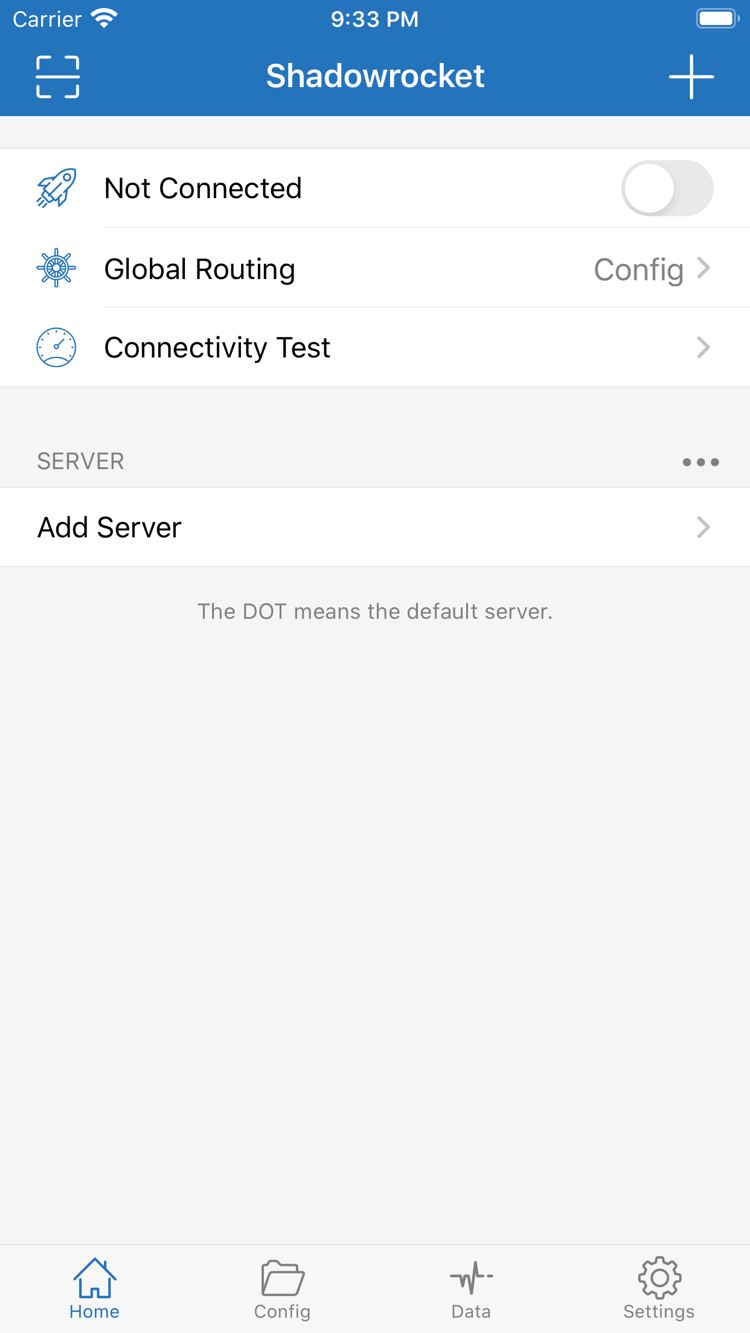
Open Shadowrocket and stay on Home. Find Add Server in the SERVER group, or tap the plus sign at the top to open the add screen. First identify the information you have: a subscription link retrieves a group of servers, while details listing a protocol, host, and port are generally for adding an individual server. Choose either method; there is no need to add the same server twice.
With a subscription link: choose Subscribe
Open Type in Add Server and choose Subscribe. Paste the complete subscription link from your service provider into URL, then save it. Do not remove anything after the question mark or paste the link into Host. Return to Home and check whether the subscription group and its entries appear under SERVER. If the group exists but the list is empty, refresh the group once. If it remains empty, check that the link is complete and still valid; there is no need to keep creating new groups.
With individual server details: enter the fields for the protocol
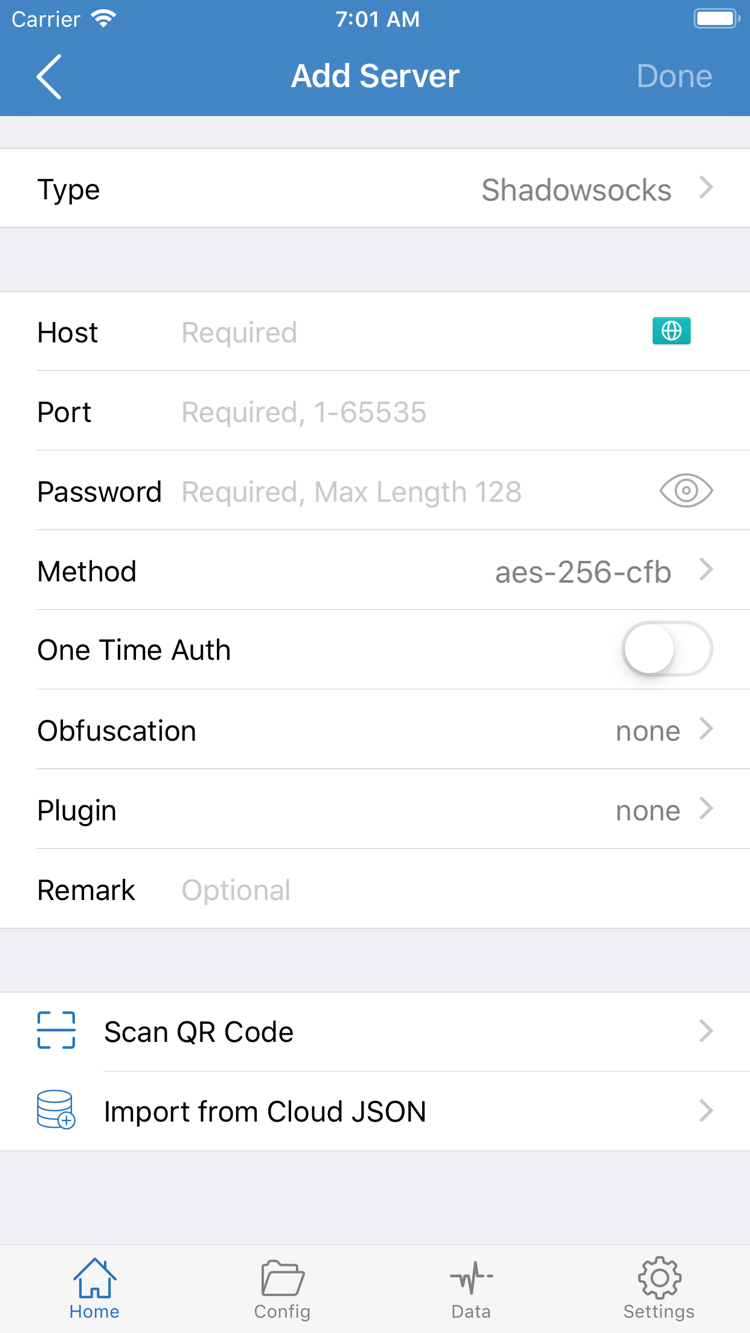
Select the correct Type first so the page displays the fields for that protocol. For example, with Shadowsocks, enter the server address in Host, the port in Port, and check Password and Method. Other protocols may show different fields; enter the values provided by your service provider in the corresponding fields. Do not copy server details from a screenshot or paste a complete share link into the host field. If you have a QR code, tap Scan QR Code in Add Server. Check the detected type and host before confirming the import.
Both methods are complete when you can return to Home, find the entry under SERVER, and select the one you want to use for the first test. An entry in the list confirms that it was imported, not that the server is reachable. For details on QR codes, clipboard imports, and organizing multiple subscriptions, see the server management manual.
Global Routing: Choose Config, Proxy, or Direct
After selecting a server, open Global Routing from Home. This determines how traffic is handled after the connection is enabled; it is separate from choosing a server in SERVER. For your first rule-based setup, choose Config (Config). When troubleshooting, you can briefly switch modes and compare results for the same webpage. Remember to return to the mode you need when testing is done.
- Config
- Matches traffic against rules in the currently enabled configuration file. When the same device visits two domains, one can match
PROXYand the otherDIRECT. Importing a server does not import custom routing rules. If traffic does not behave as expected, first check which configuration file is active. - Proxy
- Routes traffic handled by the client through the proxy, rather than deciding the destination rule by rule using the current configuration file. This is useful for checking whether the selected server can handle a request. If this mode works but Config does not, check the rules or policy selection next; there is no need to change the server password first.
- Direct
- Routes traffic handled by the client without using a proxy server. This is useful for checking direct access on the same network. If a webpage opens in Direct mode, that only confirms that it was accessible directly under the current network conditions; it does not indicate whether the proxy server is working.
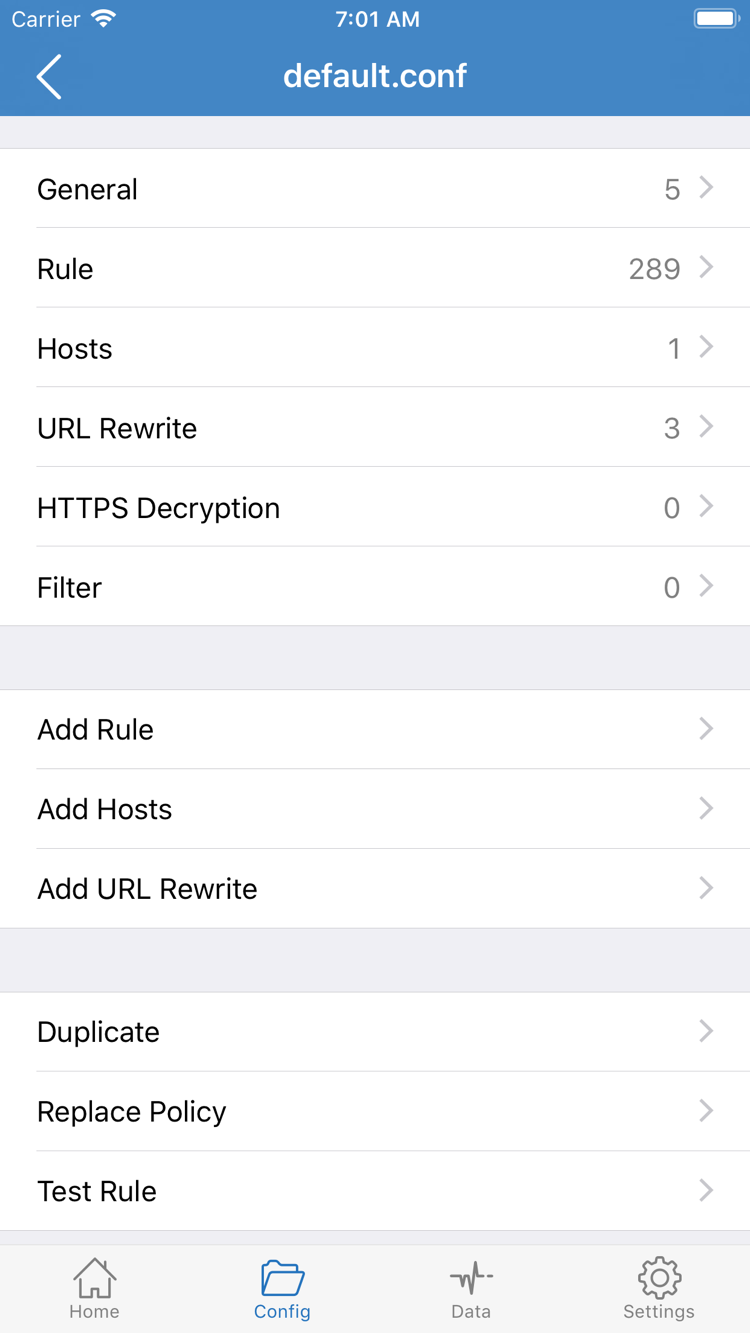
After selecting Config (Config), switch to the Config page at the bottom and confirm that the file you intend to test is active. Open that file and check whether the Rule section has an entry for the target domain, and whether its action is PROXY, DIRECT, or REJECT. A domain may match more than one rule, so check their order as well. If you are unsure, review the existing rules first; you do not need to tap Add Rule or change HTTPS Decryption for an initial test.
The two uses of Config are different: the option in Global Routing determines whether to use a configuration file, while the bottom page is for managing files. When you are done, return to Home and confirm that Global Routing shows Config and that SERVER still has the entry you checked in the previous step selected.
Home: Turn On the Switch and Check Connection Status
Return to Home and make sure the device has a working Wi-Fi or cellular connection. If the Wi-Fi network requires web-based sign-in, complete that process before connecting Shadowrocket, then return to the app. During the initial test, stay on the same network if possible. Switching between Wi-Fi and cellular while testing makes it difficult to tell whether different results are caused by the network or the settings.
When disconnected, the top of Home shows Not Connected. Check Global Routing and the selected server below, then turn on the switch at the top. When enabling it for the first time, the system may ask whether Shadowrocket can add a VPN configuration. Confirm that Shadowrocket, which you just opened, initiated the request, then allow it. If the system asks you to authenticate the device, follow its instructions and return to the app. Adding the configuration is required for the system to handle the connection; you do not need to enter a server password for this step.
When you return, check whether the status at the top changes to Connected and the switch stays on. If the switch immediately turns off, note the message and see step five; repeatedly toggling it will not complete an authorization request. If the connection still will not stay on after authorization, check whether another VPN is running on the device. Do not remove a VPN managed by your workplace or school; first confirm which connection configurations are permitted on the device.
Connected at the top means the client connection has started. It does not mean that every request uses the proxy or that every webpage will load. Keep the network, configuration, and server unchanged and continue to the next step. This keeps the test results tied to this connection rather than to a previous state.
Connectivity Test: Check Server Reachability and Rule Matches Separately
Tap Connectivity Test on Home, wait for a result, then check which server is selected. A response means the test request returned a result under the network conditions and test method used at that time; it does not check every website. If the test times out, repeat it once without changing settings. If it times out again, investigate the server or network. Do not diagnose a problem based on a single number alone.
Next, use a browser to make two real requests: one to a domain expected to use PROXY in the current configuration, and another expected to use DIRECT. Choose webpages you know and can normally access, and reload them to avoid mistaking a cached page for a new request. If both pages open, those visits succeeded, but whether a page opens alone does not prove that it used the expected route.
To check the route, open Diagnostics in Settings and review the available diagnostic information. If request records are available, find the relevant entries using the time and domain you just visited, then check the matched rules and final policy. A webpage may also load images, scripts, or fonts from other domains. If the homepage opens but some content does not load, check the domain that actually failed rather than looking only at the address bar. If there is no matching request in the records, reload the page to run a new test; do not infer what happened from an older record.
Settings: Check Each Symptom in Turn
The switch turns off right after you turn it on
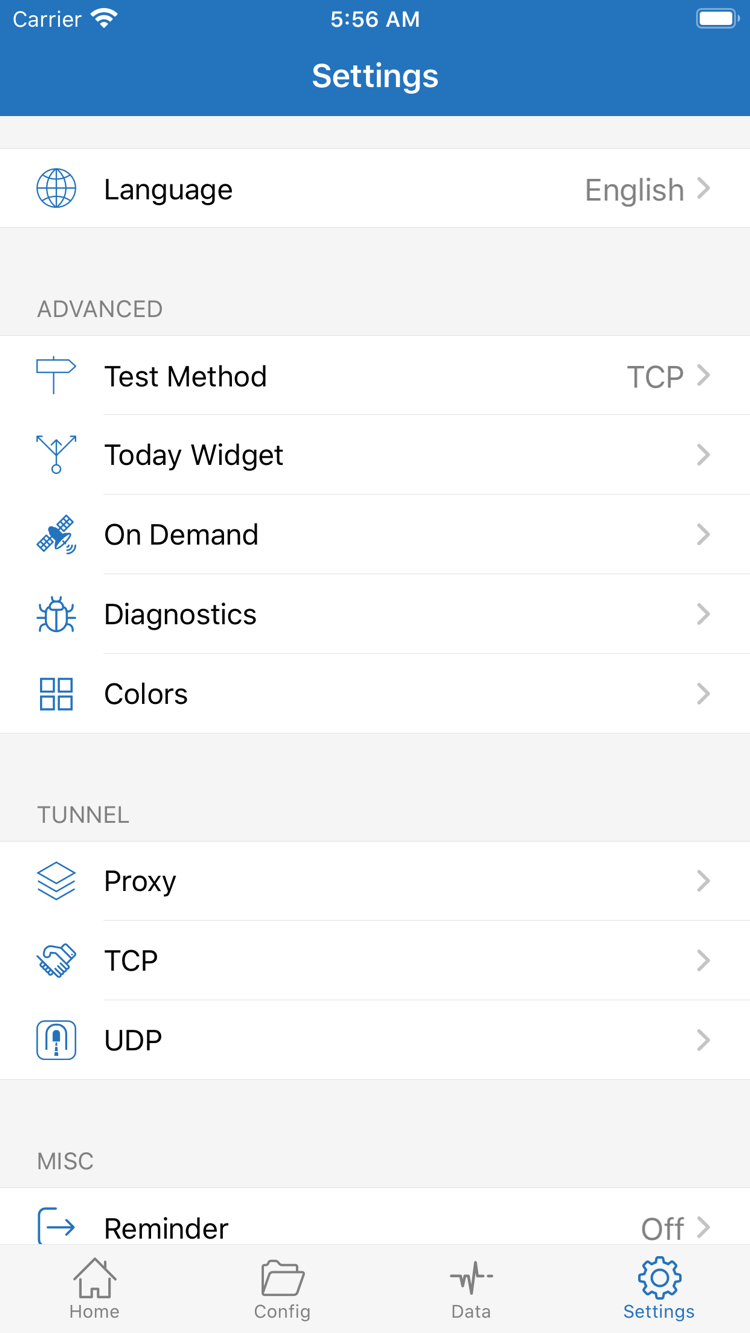
Return to Home and check whether it still shows Not Connected. Confirm that you completed the system request during the first connection. If the switch changes after switching networks, open Settings and check On Demand: existing on-demand conditions may affect the connection when you switch Wi-Fi or cellular networks. For troubleshooting, stay on the same network, note the existing conditions, and then decide whether to temporarily disable on-demand connections for a retest. Do not delete existing configuration files for testing.
Connected, but the selected server fails the test
Return to SERVER and confirm that the entry being tested is the one you just selected. For a manually added entry, check Type, Host, and Port one by one, along with the authentication fields required by the protocol. For an imported subscription entry, first confirm that the latest update retrieved its contents. If your own subscription has another available entry, switch to it and retest on the same network. A timeout on only one entry and timeouts on all entries point to different causes: first check the details of the affected entry in the former case; in the latter, check the current network and test conditions.
The test returns a result, but webpages will not load
Open Settings and check Test Method to confirm that both tests used the same method. Then find information for the failed request in Diagnostics. If you see a domain resolution error, check the DNS settings in the current configuration. If the request matched REJECT or used a different policy than expected, check the order and actions in Rule first. Note the original values before making changes, then revisit the same domain. If that does not help, restore the original values before checking the next item.
If you still cannot identify the issue, note the connection status, network used to reproduce the problem, selected routing mode, and the step where the failure occurred, then search the frequently asked questions by symptom. Before sharing diagnostic information, hide subscription links, authentication fields, and server addresses that should not be public. For multiple subscription updates, sorting, or backups, continue to the server management manual; there is no need to clear the existing list to troubleshoot a single failure.